Master Naver Map: The Ultimate Secret to a Stress-Free Korea Trip
Many travelers planning a trip to Korea make one critical mistake: relying solely on Google Maps. While Google Maps is a global standard, it is practically useless for real-time navigation in Seoul. To ensure a smooth journey, refer to the Naver Map English Guide.
If you want to explore Korea like a local and avoid getting lost, you must embrace the local giant: Naver Map. In this ultimate guide, I will show you how to navigate the city perfectly.
Before we dive in, don’t forget to check out my previous post: [Top 10 Essential Apps for Traveling in Korea] to prepare your smartphone for the journey!
○ Why Google Maps Fails in South Korea
The reason is simple. South Korea has a unique digital ecosystem where Naver Map—the country’s answer to Google—has been the dominant player since the early days of the internet.
∙ Data Restrictions: Due to national security regulations, Google doesn’t have full access to high-resolution mapping data in Korea.
∙ User Contribution: Over 90% of Koreans use Naver to leave reviews, update business hours, and share local tips. If you want “living” information, you need Naver Map.
1. Setting Up: Step-by-Step English Mode Guide
In this Naver Map English Guide, I will provide essential tips for making the most of the app.
With this Naver Map English Guide, you will find it easier to explore the vibrant streets of Korea.
Don’t be intimidated by the Korean text. You can switch to English in seconds by following these steps.
○ NAVER Maps Language Setting GuideVersion)
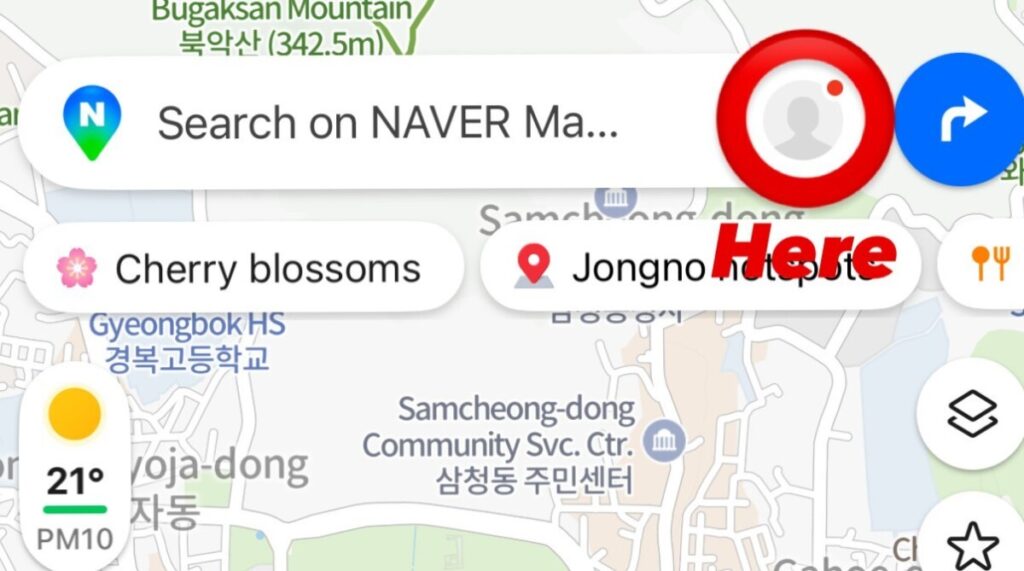
∙ Step 1: Access User Profile Tap the Profile icon located at the top right of the main map screen.
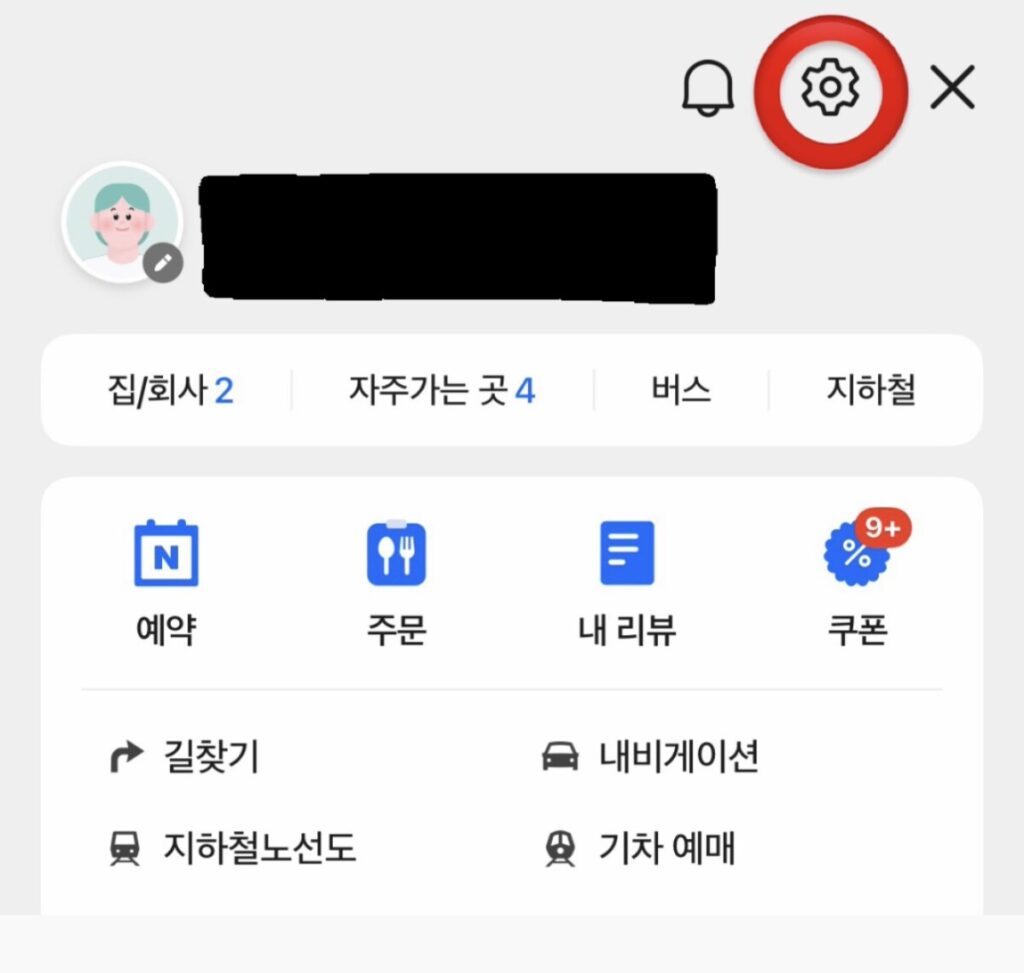
∙ Step 2: Open Settings Tap the Gear icon (Settings) at the top right of the side menu.
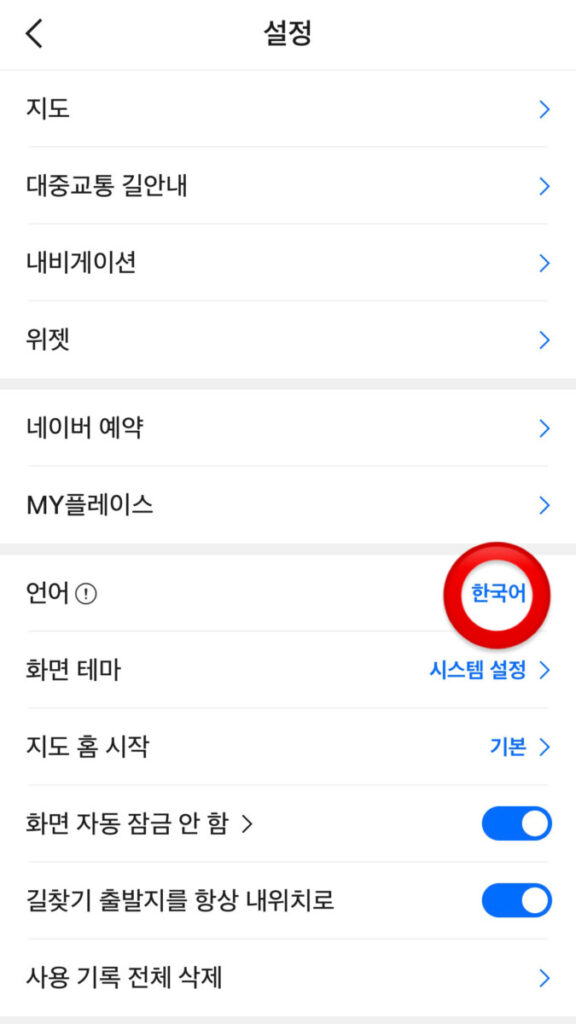
∙ Step 3: Navigate to Language Options Scroll down and select the Language (언어) menu.
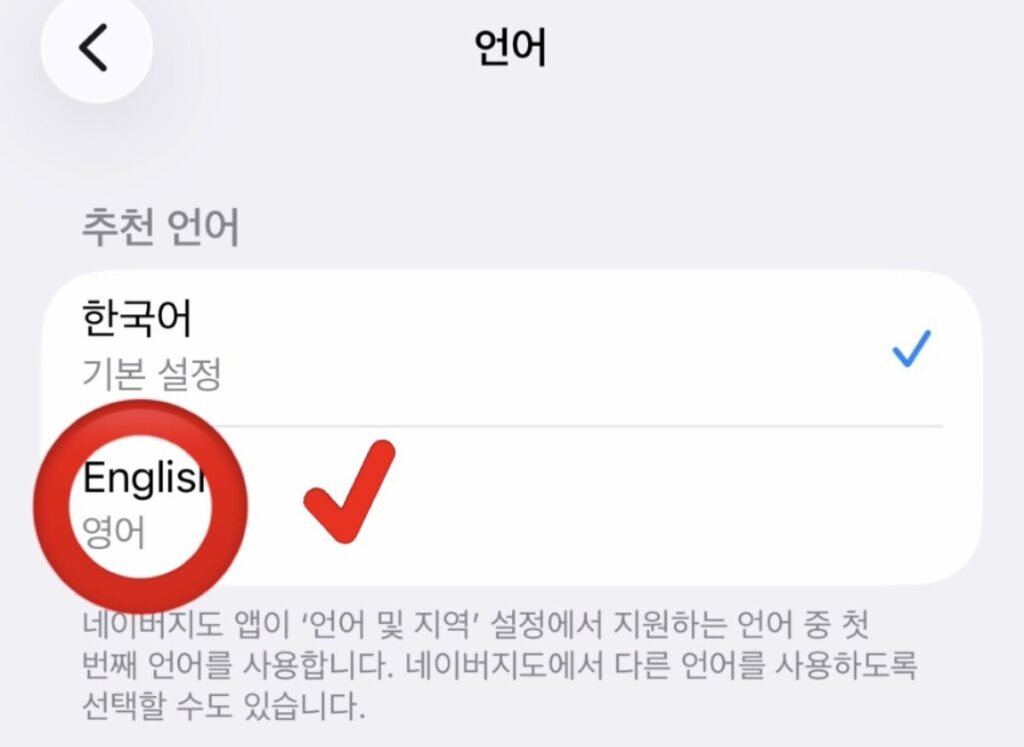
∙ Step 4: Enter Preferred Language Menu Tap the Language (언어) button again under the ‘Preferred Language’ section.
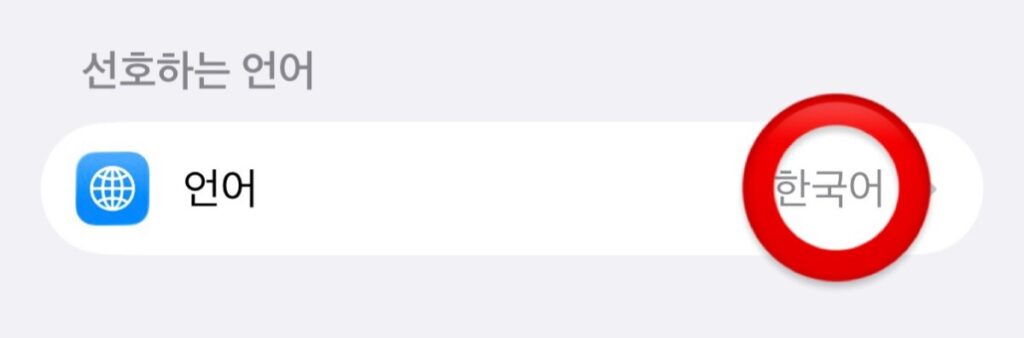
∙ Step 5: Select English Choose English (영어) from the list. A blue checkmark will confirm the change.
∙ Pro Tip: The “Phone Number” Hack
Sometimes, searching for a place in English returns zero results. The “cheat code” is to input the venue’s phone number into the search bar. Since every business is registered with a number, this is the most accurate way to find a location without typos.
2. Getting Around: Your Ultimate Navigation Guide
Naver Map provides the most precise and real-time navigation data for all types of travelers. Whether you are taking a bus, driving, or walking, here is how to find your way.
∙ Find the Best Route (Public Transit)
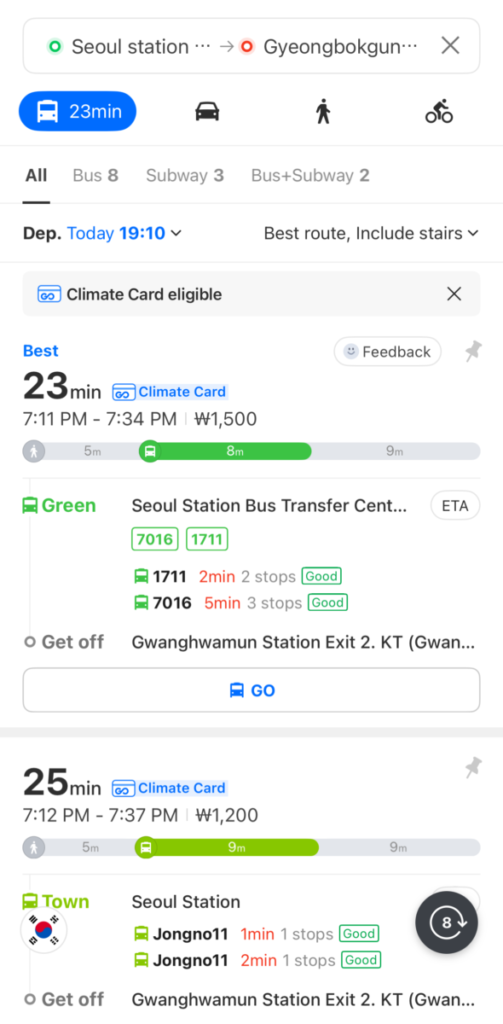
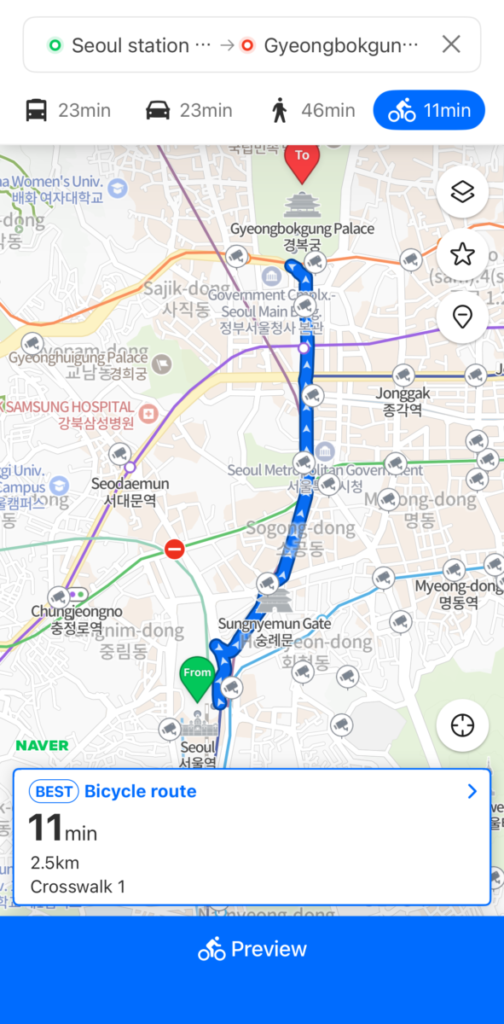
When you search for a route (e.g., from Seoul Station to Gyeongbokgung Palace), the ‘Public Transit’ tab shows you the fastest options.
- Real-time Bus/Subway Info: You can see exactly when the next bus (like 7016 or 1711) will arrive and how many stops are left.
- Crowding Indicators: Check the “Good,” “Moderate,” or “Congested” tags to see how crowded the transit is before you board.
- Climate Card: If you are using Seoul’s unlimited transit pass, look for the “Climate Card eligible” badge to ensure your route is covered.
∙ Driving & Taxi Fare Estimator
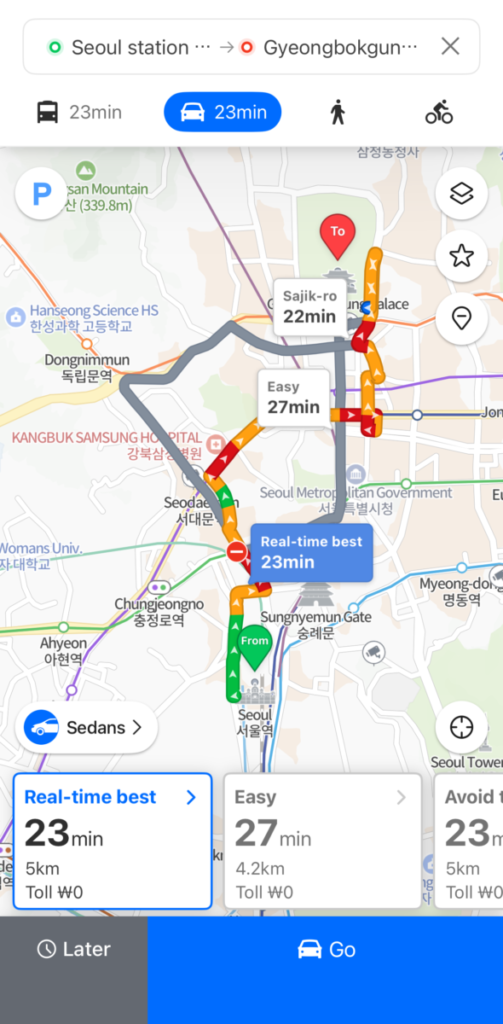
If you prefer traveling by car, the ‘Driving’ tab provides multiple routes based on real-time traffic conditions.
- Route Options: It offers choices like “Real-time best,” “Easy,” or “Avoid tolls”.
- Taxi Fare: Even if you don’t drive, this tab is crucial because it shows the estimated taxi fare. Showing this to your driver prevents any miscommunication!
∙ Walking & Bicycling: The Local Way
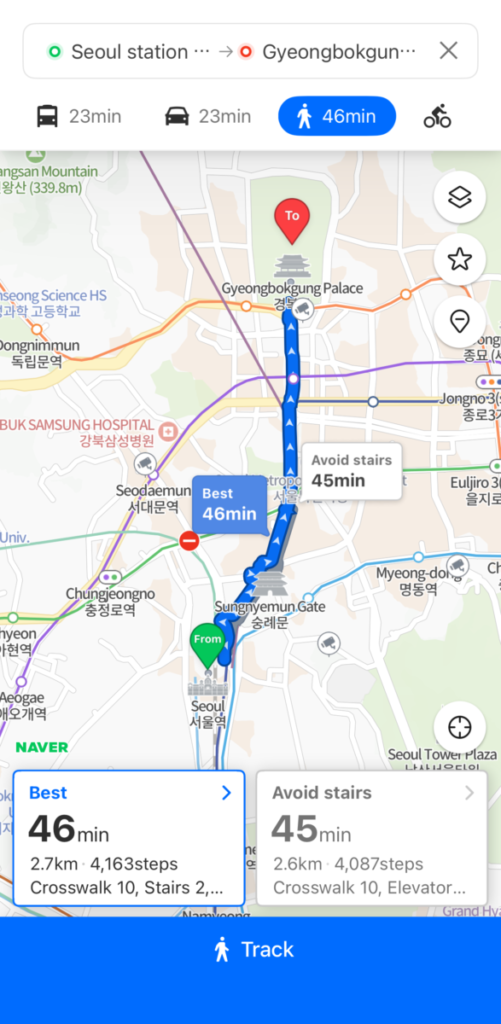
For short distances, Naver Map’s walking and cycling directions are far superior to any other app.
- Walking (Avoid Stairs): The walking tab often includes an “Avoid stairs” option, which is a lifesaver if you have heavy luggage or a stroller. It even counts your steps for you!
- Bicycling: Perfect for Ttareungyi (Seoul Bike) users. It shows the safest bicycle paths and avoids dangerous roads.
3. Finding “Real” Local Gems: Beyond Star Ratings
Koreans don’t just look at the star rating (e.g., 4.5/5.0). We dig deeper into the sentiment. Here is a step-by-step guide to finding and analyzing local restaurants, complete with a powerful translation feature.
∙ Search and Explore by Category
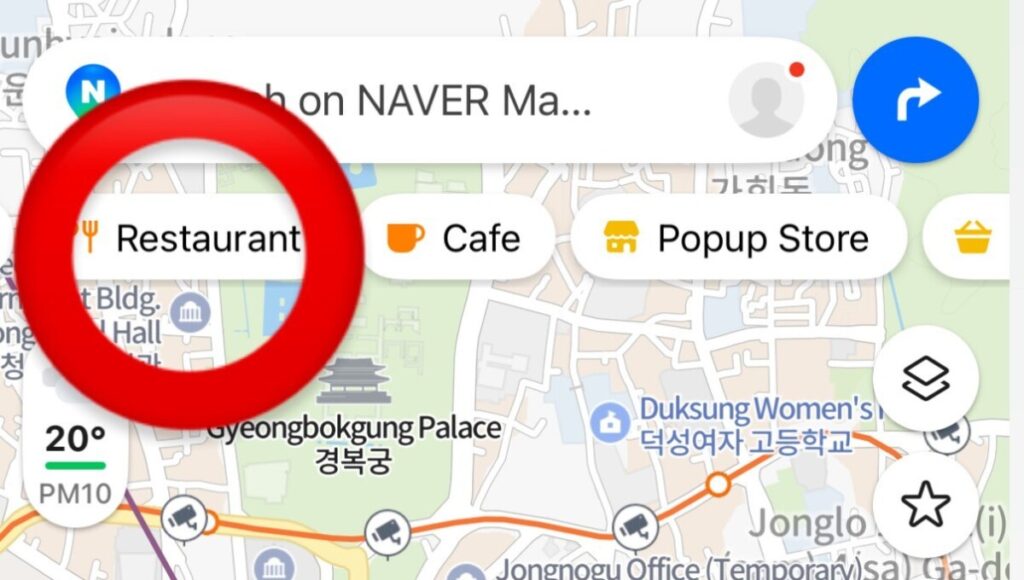
The main map screen has convenient category tabs. Look for the ‘Restaurant’ tab at the top. Tapping it will show you all the food places nearby.
∙ Save Your Favorites
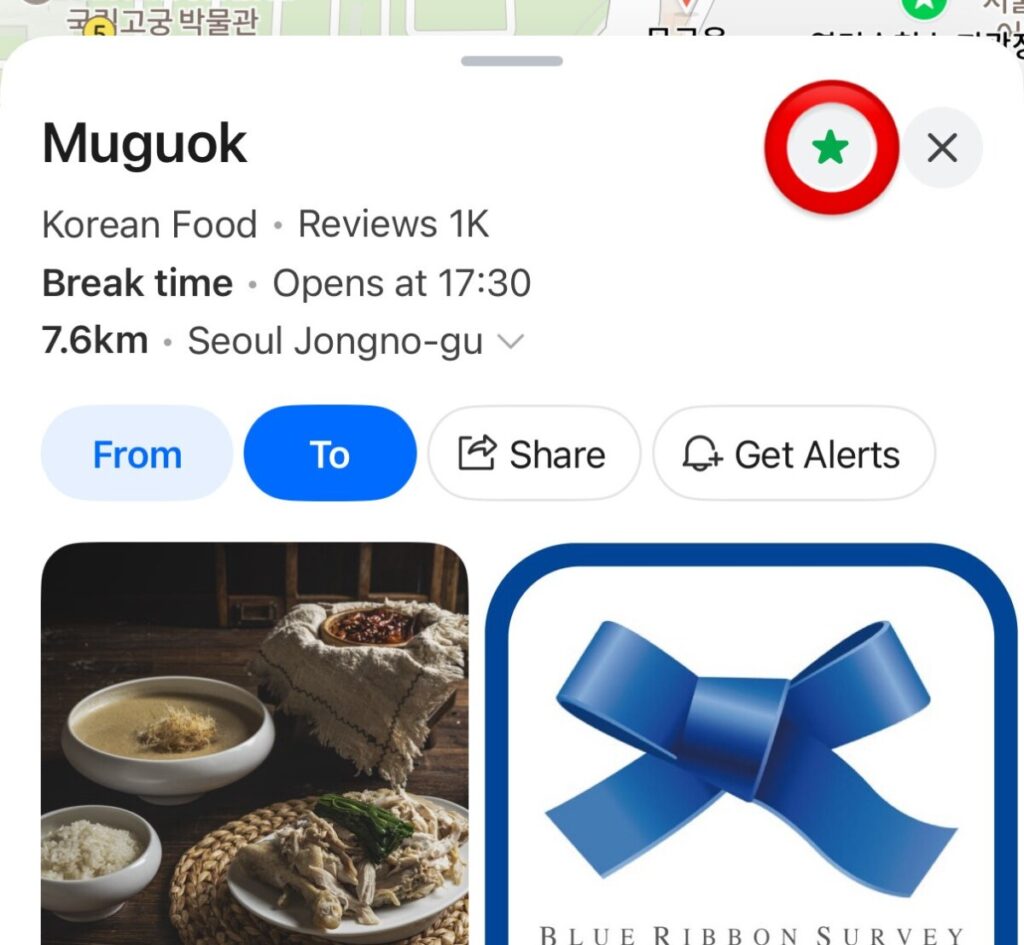
When you find a place that looks promising, like ‘Muguok’ in our example, look for the Star icon. Tapping it saves the place to your “My Places” list for easy access later.
∙ Analyze Place Information, Menu, and Prices
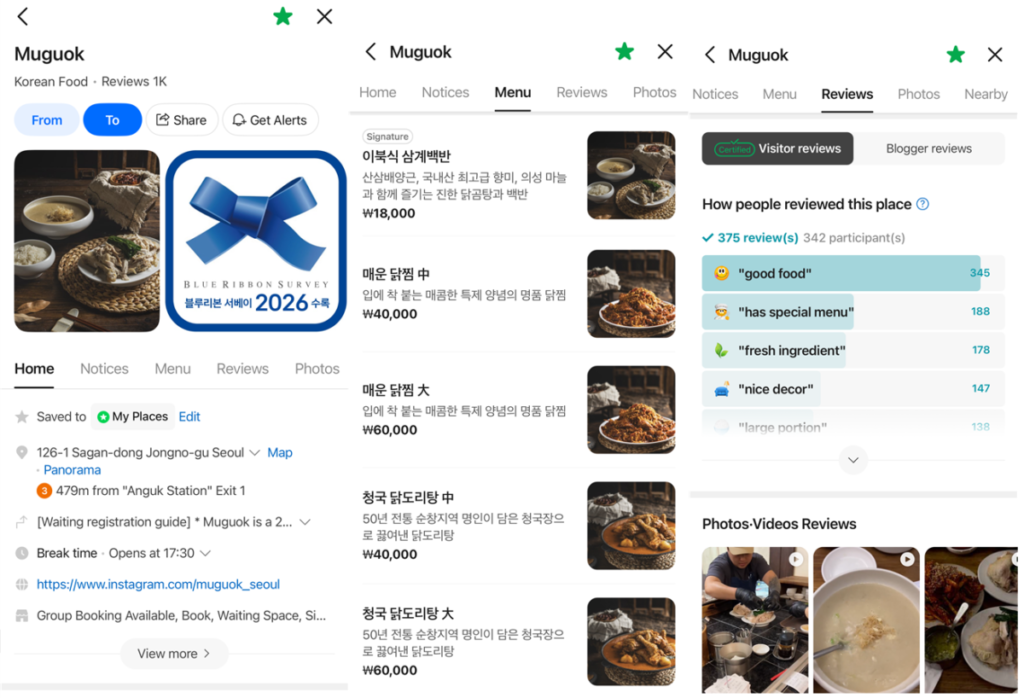
The place information sheet (Image 2) provides crucial details like the exact location, Break time, and Operating hours.
To see what to eat, tap the ‘Menu’ tab. Here, you can find unedited photos of the dishes, the signature menu items, and their precise prices in KRW.
∙ Dig into Real Korean Reviews (With Translation!)
This is where you find the living information. Tap the ‘Reviews’ tab to see real customer feedback.
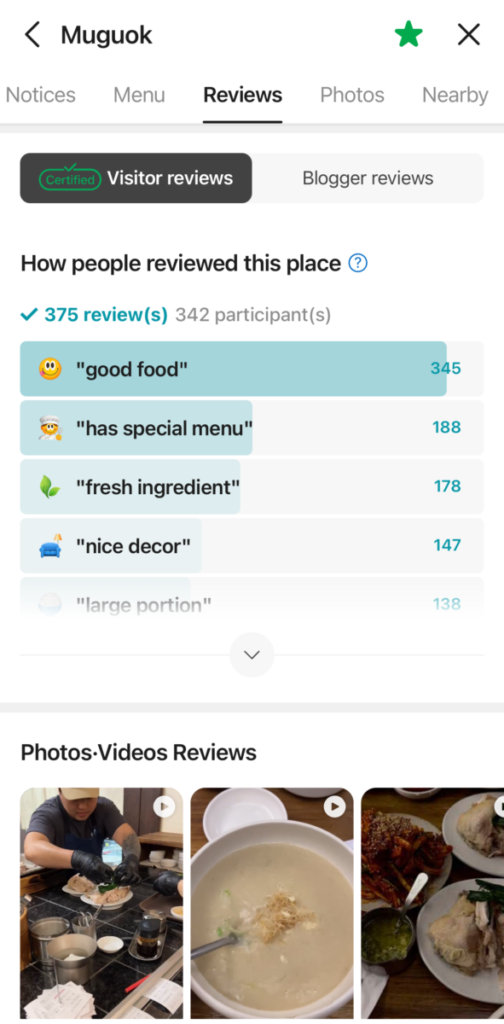
∙ Visitor Review Tags: Under ‘Visitor Reviews’, you’ll see interactive tags like “good food”, “has special menu”, or “fresh ingredient”. These tags provide a quick snapshot of the vibe based on hundreds of votes.
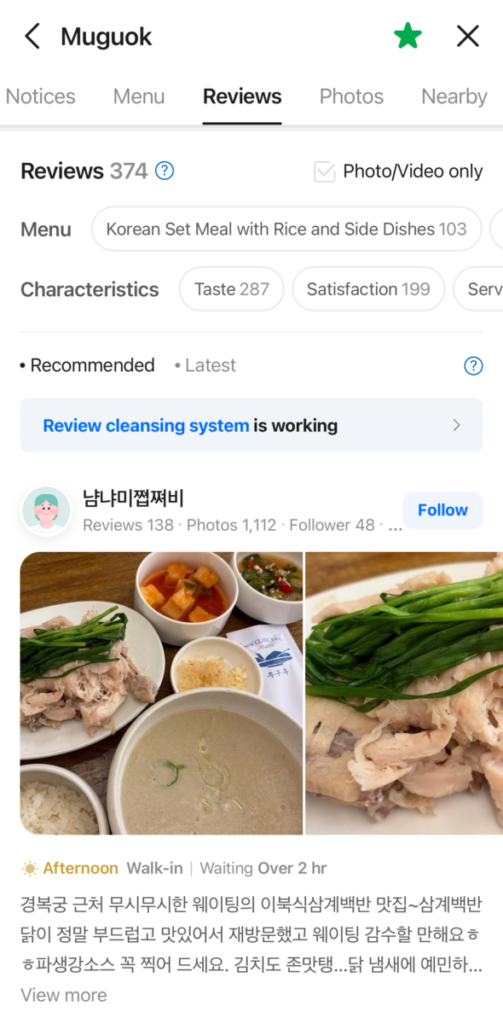
∙ Photo Reviews and Keywords: You can also filter reviews to see ‘Photo/Video only’ for more visual insights. Below that, you can filter reviews by ‘Characteristics’ (Taste, Satisfaction, etc.) or specific keywords.
∙ The Power of Review Translation (2026 Update)
Since most reviews are written in Korean, Naver Map has a powerful, built-in translation feature.
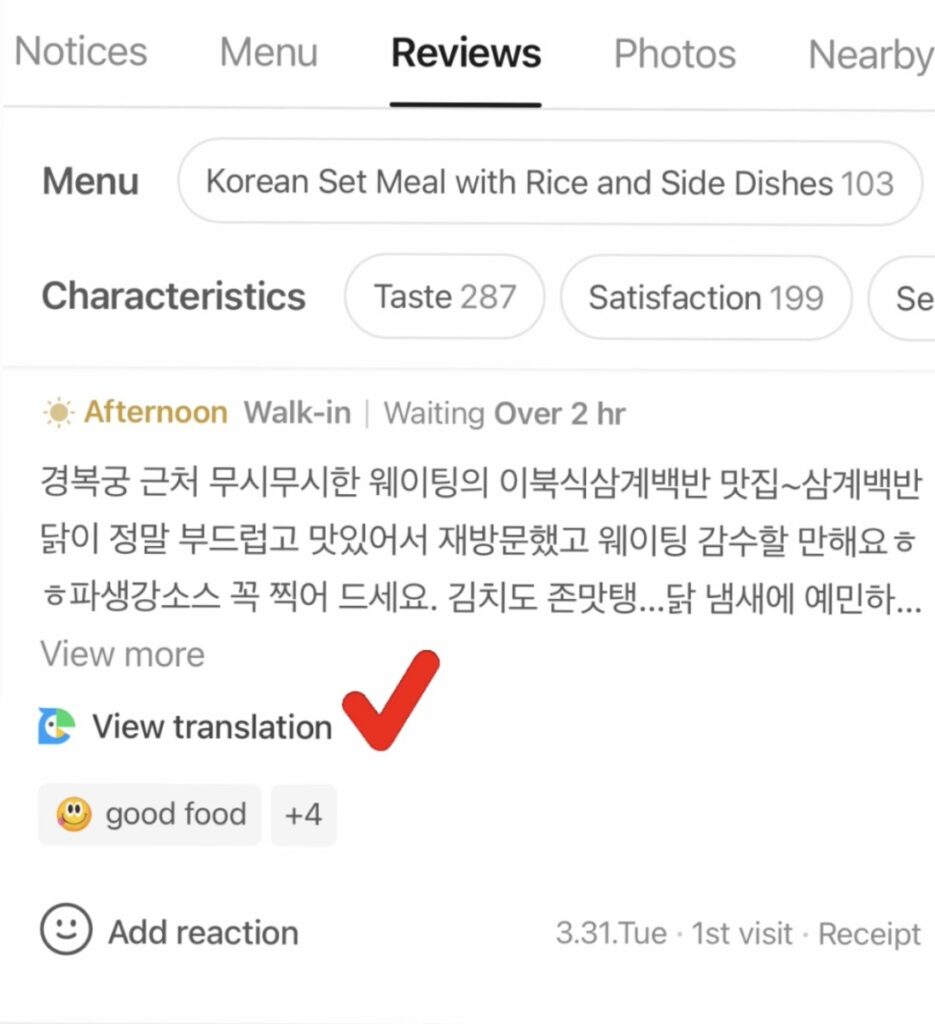
∙ View Translation: On a review card, look for the ‘View translation’ link. Tapping it will instantly translate the Korean review into your preferred language (English in our guide).
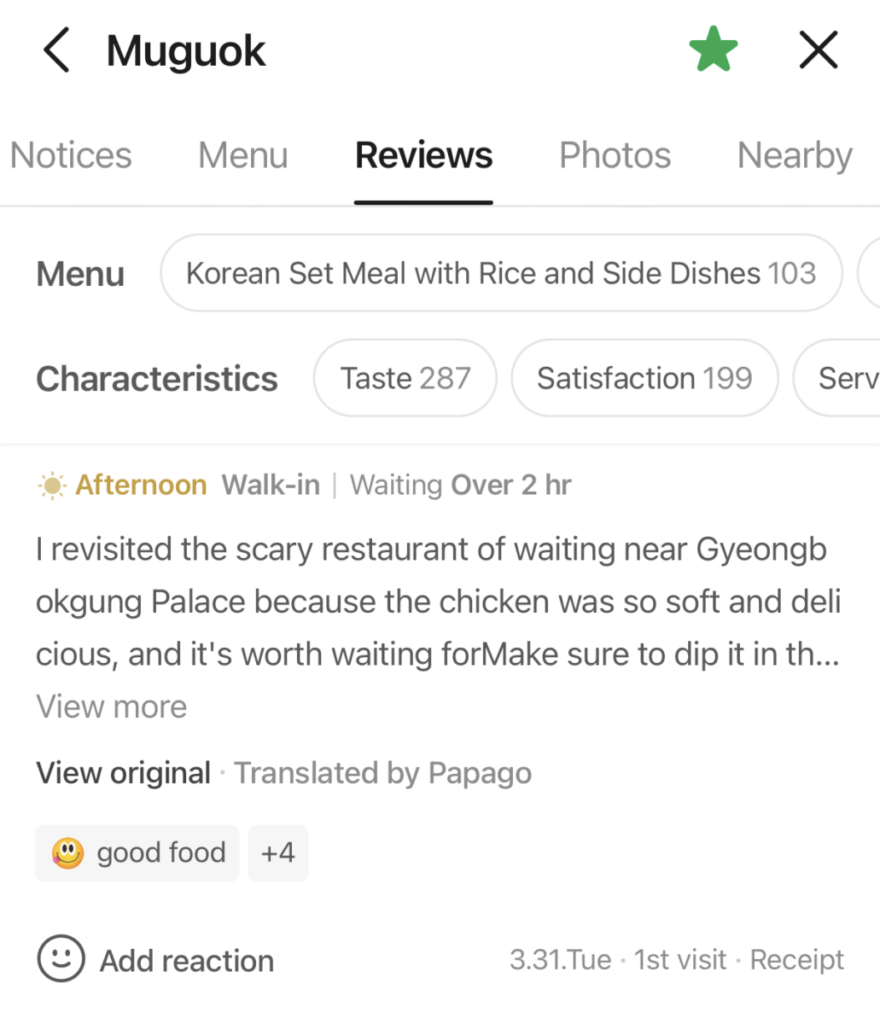
∙ Translated Review: The translated text, powered by Naver Papago (Naver’s own translator), appears below the original. While not 100% perfect, it gives you a very accurate understanding of the customer’s experience.
∙ Deep Dive with Blog Reviews
If a simple visitor review isn’t enough, tap the ‘Blog Reviews’ tab. Koreans love writing detailed blog posts about their experiences, complete with tons of photos of the dishes, the interior, and even the waiting process. This is the best way to get a complete “vibe check.”
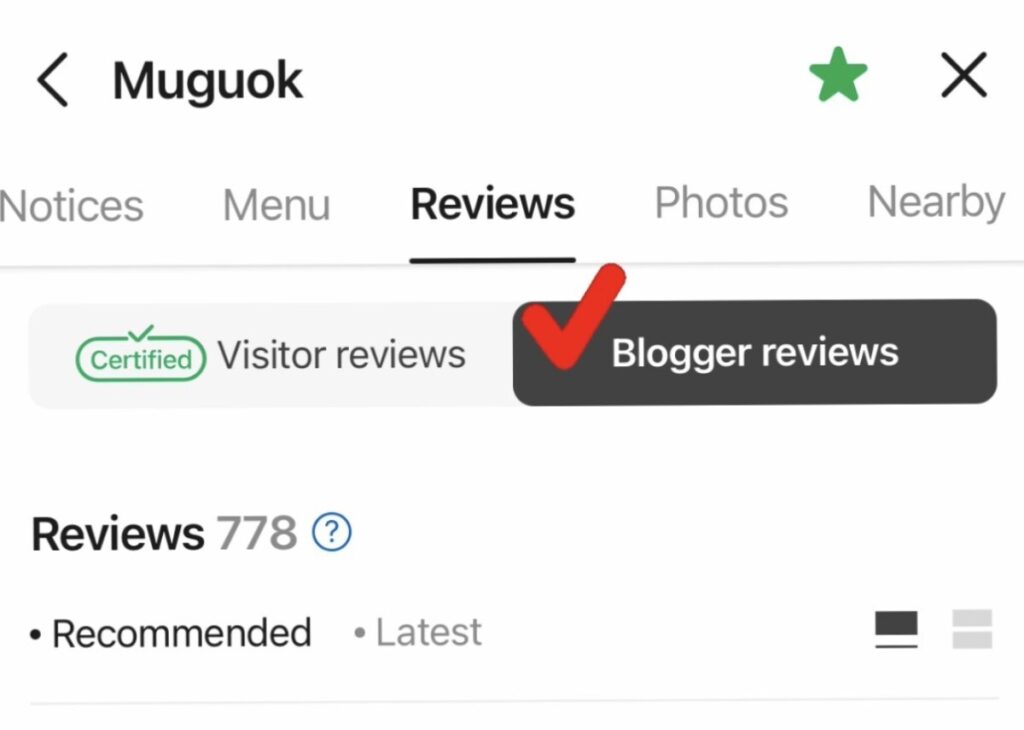
- Note: Check the most recent blog posts for authenticity to avoid promotional content.
4. Smart Traveling: Booking & Exclusive Coupons
Naver Map acts as your personal concierge. You can book services and grab discounts without making a single phone call.
∙ Hidden Coupons: Don’t Pay Full Price!
When looking for a place, always check the category tabs like ‘Restaurant’ or ‘Hair Salon’. You’ll often see shops offering exclusive coupons.
- Salon & Cafe Discounts: Many hair salons and cafes offer download-able coupons for first-time visitors or specific time slots.
- Review Coupons: Some restaurants offer discounts or free drinks if you promise to leave a photo review. Always check the ‘Coupons’ tab before you pay!
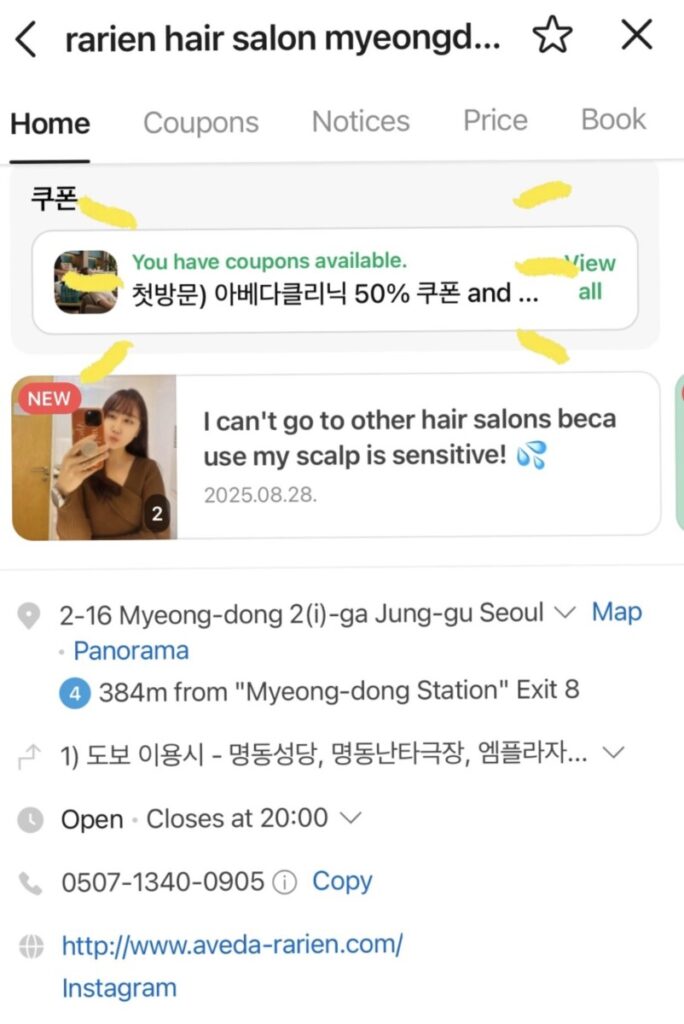
∙ Case Study: Booking a Salon like a Local (Example: Larien Myeongdong)
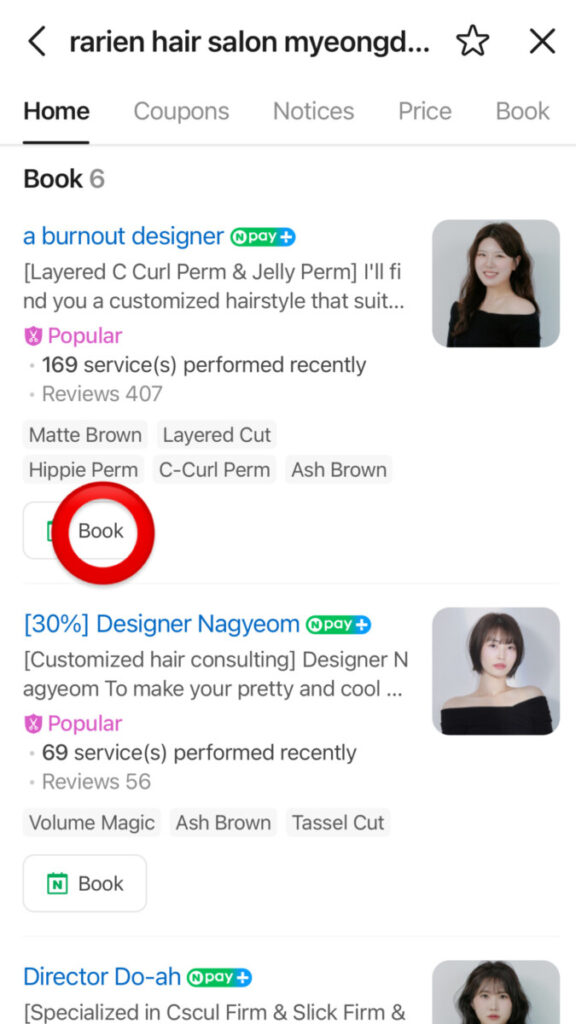
I used to work in Myeongdong and often visited ‘Larien’. It’s the perfect example of how the Naver booking system works. Here is a step-by-step guide to securing your appointment:
Step 1: Choose Your Designer Look through the list of stylists. You can see their specialties, the number of services performed, and real customer reviews. Once you find the right match, tap the [Book] button.
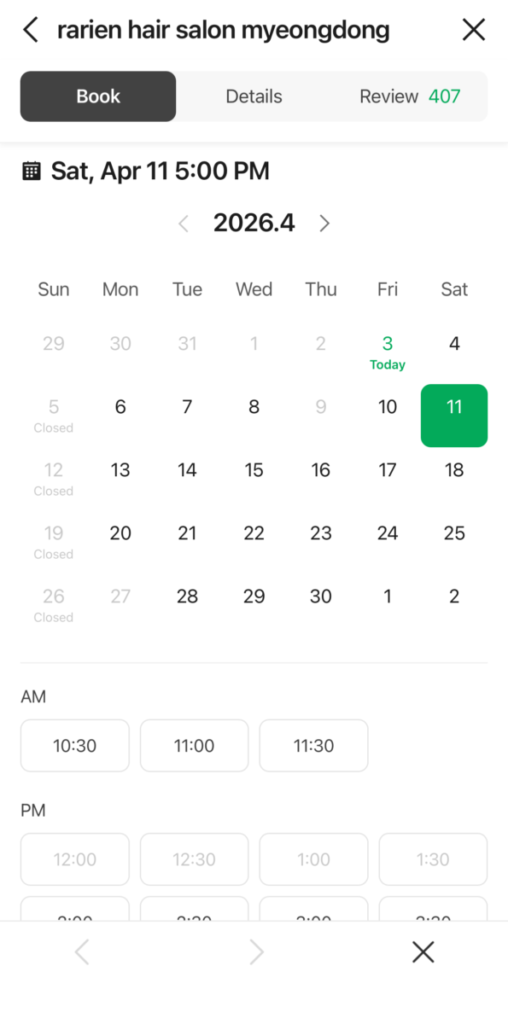
Step 2: Select Date & Time The app shows a real-time calendar. Green slots indicate available days. Simply pick your desired date and then choose an available time slot from the list below.
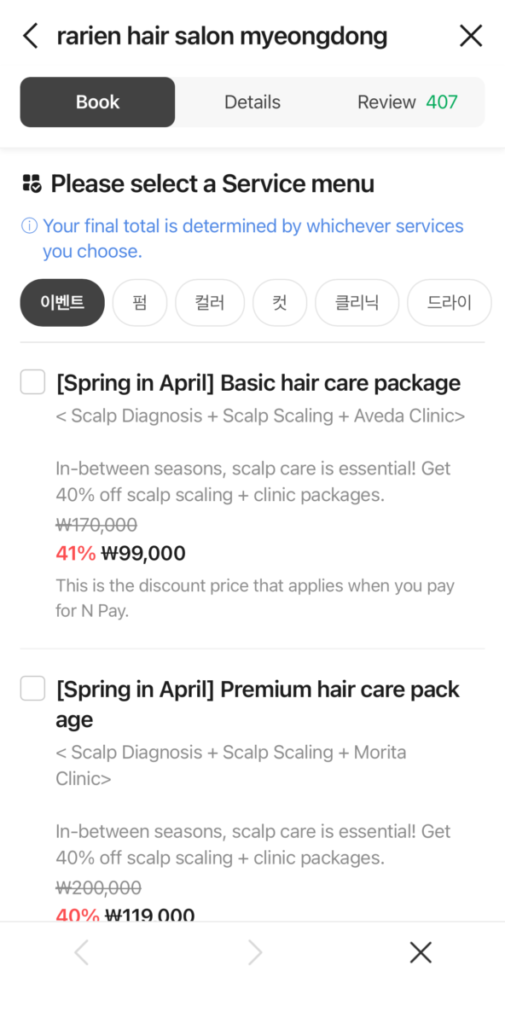
Step 3: Select Your Service Menu Browse through the available services. You’ll often find special “Event” packages like the [Spring in April] deals which offer significant discounts (up to 40% off) if you pay with N-Pay.
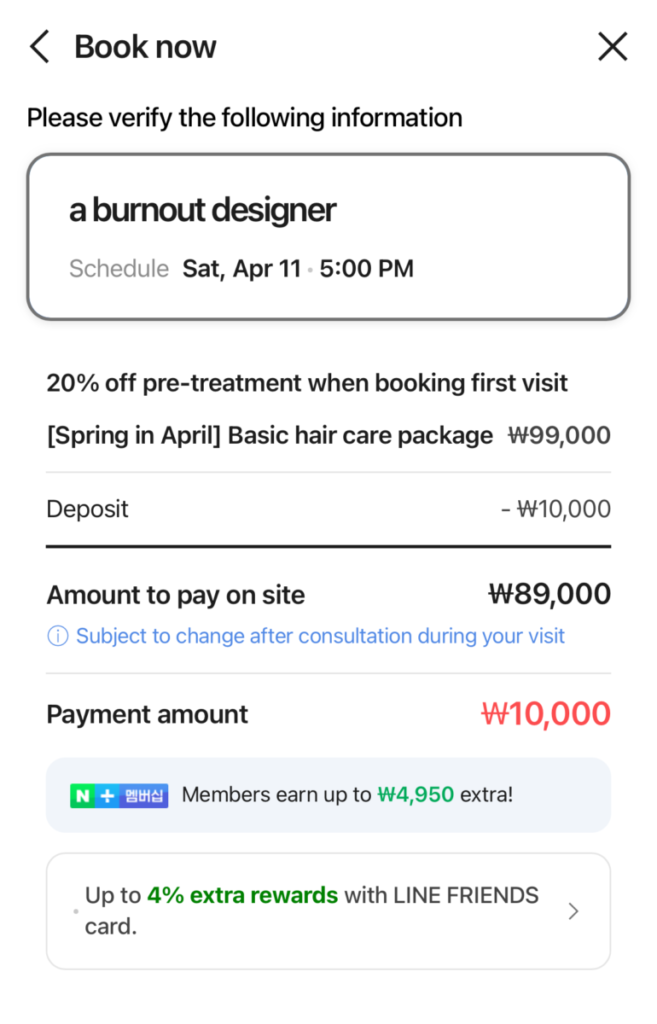
Step 4: Confirm Your Booking & Deposit Before finishing, verify all the details. Most popular salons require a Deposit (e.g., 10,000 KRW) to prevent no-shows.
- The Breakdown: The deposit is deducted from your final bill. For example, if your service is 99,000 KRW, you pay 10,000 KRW now and 89,000 KRW on-site.
- The Warning: If you are a ‘No-show’, the 10,000 KRW is non-refundable. Always double-check your schedule and the cancellation deadline before confirming!
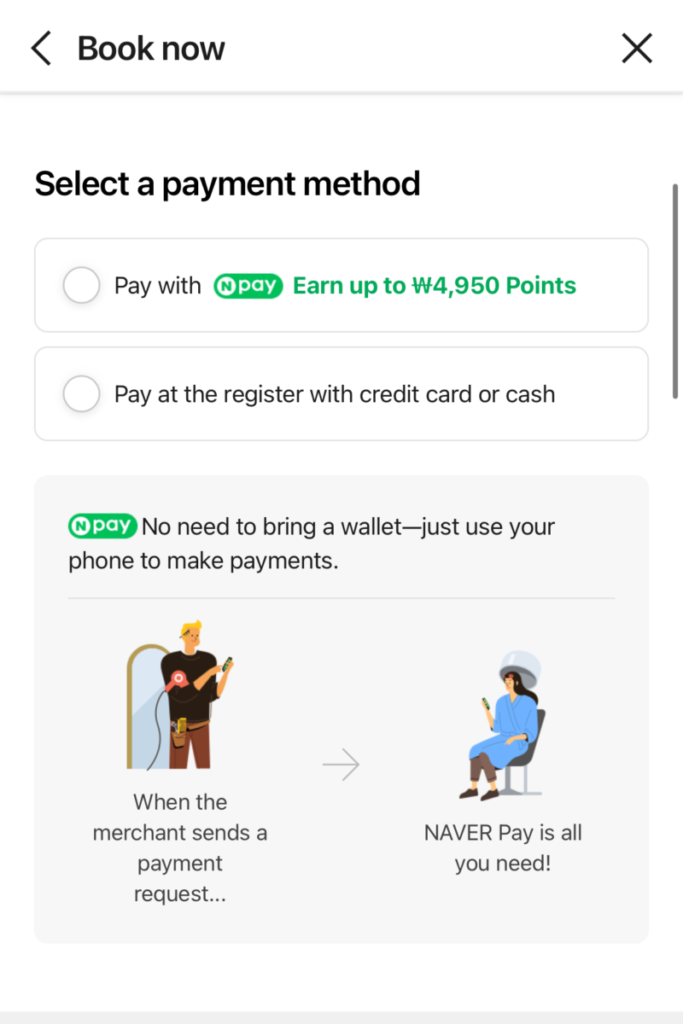
Step 5: Finalize Payment Method Finally, choose how you want to pay the deposit. You can pay with N-Pay to earn points or choose to pay the remaining balance at the register using your physical credit card or cash once the service is done.
○ Conclusion
As you can see, Naver Map is a “living encyclopedia” that handles everything from navigation to payments and reservations. By mastering this app, you can explore hidden alleys, find the best local prices, and travel through Korea with total confidence.
Download: Get the official app for iOS via Apple App Store or Android via Google Play Store.
Learn More: For more technical details or to plan on your desktop, visit the Naver Map Official Website.